From the 16th of October 2026 to the 4th of January 2027, Brack is running the Fujifilm Reveal Deals, where they reveal one discounted producted every Friday.
Category: Uncategorized
-
Disabling automatic restart after Windows 11 update
The problem
Last night I left my computer importing a big set of photos into my photo database.
When I woke up this morning, all of my open programs had been closed, which immediately told me that my computer had been restarted after a Windows update.
Now, before I tell you how I prevented this from happening in the future, I need to vent.
The rant
I don’t know who are the idiot POs of modern companies like Apple, Microsoft or Google who make all the decisions about what users wants. They clearly have absolutely no clue what they’re doing.
Users don’t want to be forced to restart a computer to apply updates.
There was a time, some 15 to 20 years, when Linux or Mac OS X were able to install software updates while you were using your computer, and you could keep it running without a reboot for as long as you wanted. Some updates would take effect immediately. Others, like kernel updates, would only be applied after a restart, for obvious reasons, but nobody was pressing you to reboot.
On Windows, you would also be able to choose whether to install updates automatically, install them manually or never install them. If you had automatic updates, Windows would demand a restart, but you could choose when to install and when to restart.
These were the days of Mac OS X Tiger and Windows XP. Glorious days.
Then Apple changed it so that you couldn’t use the computer while it was installing updates. Crappy move.
Then Microsoft changed it so that you would have a deadline to install the updates manually, after which it would happen automatically. And then you couldn’t choose when the restart happened anymore.
The result? Now I don’t know if I lost work. I don’t know if I lost data. I don’t know if my photo database has been corrupted.
Thank you Microsoft! You make crappy software that keeps annoying and alienating users.
The research
Searching the internet for a solution, I’ve come across all sorts of pages.
There are some naive pages that present 4 Ways to Easily Disable Windows Updates or 5 ways to stop Windows Update from rebooting your PC.
Well, guess what: I don’t want 5 ways, I want just one frigging way that works!
When you tell me there are 5 ways, what I hear is that all of them are hacks that don’t work 100% as intended. I want the one way that works.
Fortunately, Microsoft hasn’t yet eliminated the proper way to stop Windows updates from restarting your computer, but they’ve made it more difficult for end users to change.
Some pages like these:
- Disable automatic restarts of Windows 11 (Pro) – Super User
- Prevent automatic restart? : r/Windows10
point to a solution that requires editing group policies, something that’s only available on Windows Pro, not on Windows Home.
Then there’s a Microsoft documentation page titled Manage device restarts after updates that tells you all the workarounds, including setting active hours (which is not really a valid option in my opinion) and editing the group policy (which is what a hassle and it’s not available on Windows Home).
From the Microsoft documentation it seems that there is actually a registry key that can be used to disable Windows updates, which might make it possible even in Windows Home.
The solution
So let’s summarize the solution options that might work.
Requiring a prompt before restart
Some sources say that you can disable automatic restarts by simply telling Windows to notify you when a restart is required.
I will believe this when I see it, but it’s worth giving it a try, because it’s a simple change that will likely be available on all Windows editions… Unless you’re using Windows Pro, Enterprise or Education and your system administrator has disabled it via group policy. Thanks Microsoft!
To enable update notifications:
- Open the
StartMenu or press theWindowskey. - Search for
Windows Update settingsand open it. - Click on
Advanced options. - Go to
Notify me when a restart is required to finish updatingand toggle it toOn.
Disabling automatic restarts in the Local Group Policy Editor
This is reported to work for Windows 11 Pro, Enterprise and Education.
- Press the keys
Windows+R. - Write
gpedit.mscand press theyOKbutton or Enter in your keyboard. - Navigate to
Computer Configuration>Administrative Templates>Windows Components>Windows Update>Legacy Policies. - Double-click on
No auto-restart with logged on users for scheduled automatic updates installations. - Select
Enabledand pressOK.
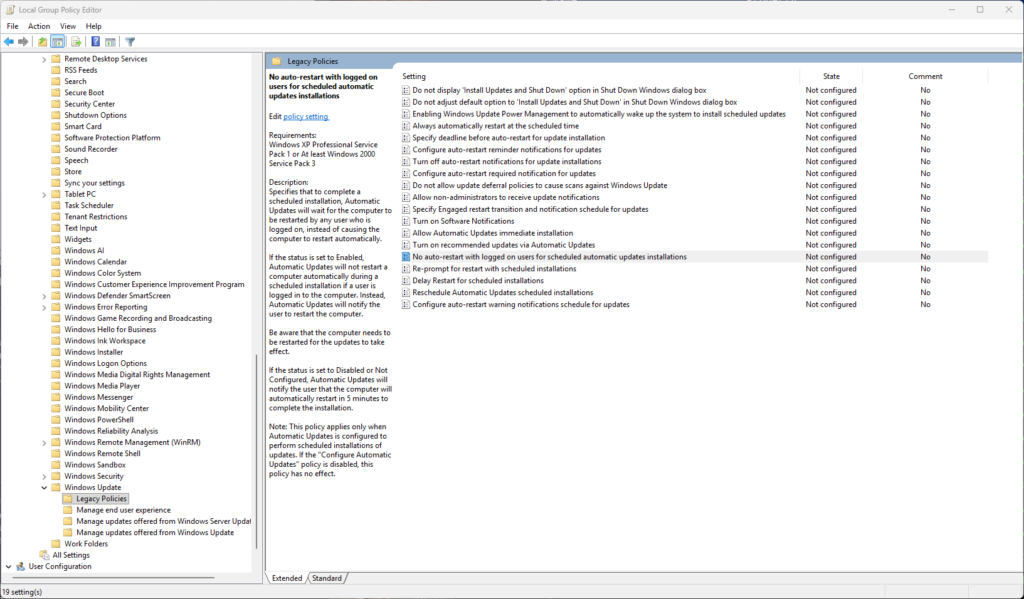
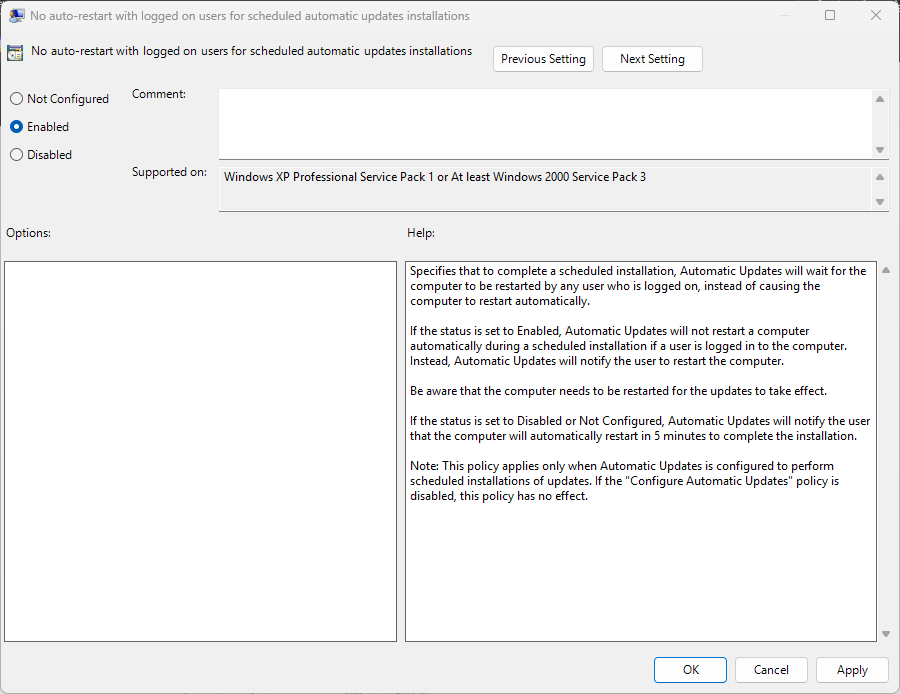
There’s an interesting note here:
Note: This policy applies only when Automatic Updates is configured to perform scheduled installations of updates. If the “Configure Automatic Updates” policy is disabled, this policy has no effect.
If we go to
Computer Configuration>Administrative Templates>Windows Components>Windows Update>Manage end user experience, we will find a policy namedConfigure Automatic Updates: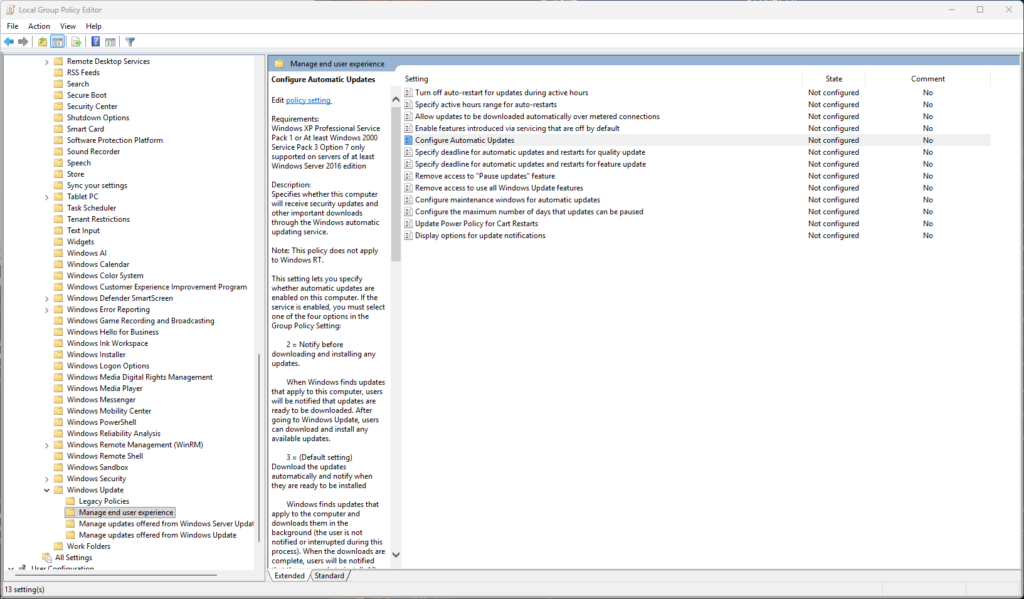
Reading the description, it seems that this policy controls the setting that we used to have as an option on Windows XP.
I haven’t tried this, but you could potentially set this policy to
Enabledand select option2to replicate the Windows XP behavior of notifying before downloading or installing.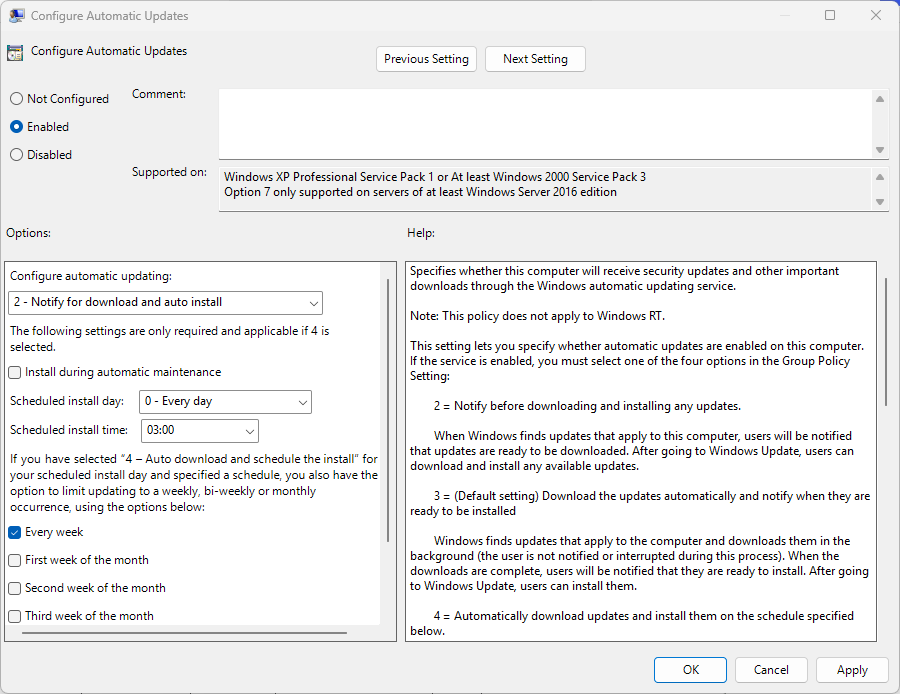
This video:
drew my attention to another group policy that prevents Windows update from waking up your computer. This also sounds like a wise thing to disable:
Under
Computer Configuration>Administrative Templates>Windows Components>Windows Update>Legacy Policies, double-click onEnabling Windows Update Power Management to automatically wake up the system to install scheduled updates: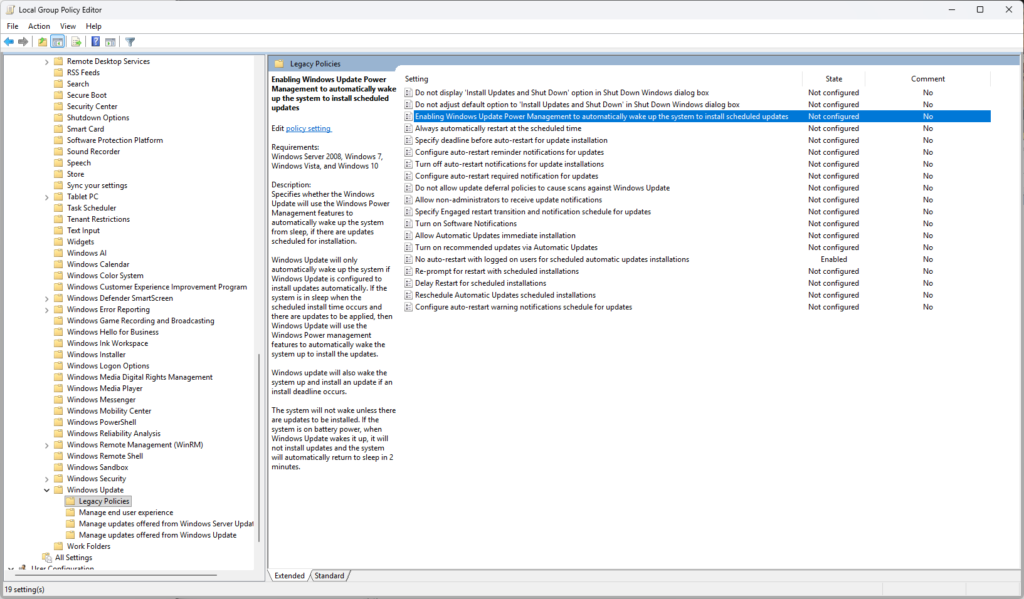
and set it to
Disabled: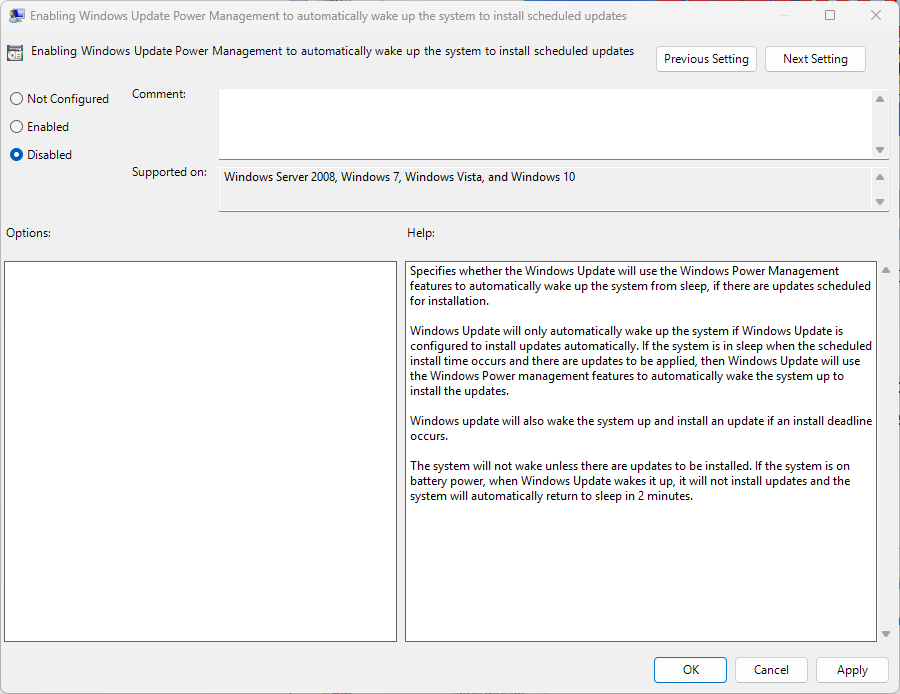
Disabling automatic restarts in the Windows registry
Editing the registry with the graphical editor
To edit the registry using the graphical user interface:
- Press the keys
Windows+R. - Write
regedit.exeand press theyOKbutton or Enter in your keyboard. - Navigate to
HKEY_LOCAL_MACHINE>Software>Policies>Microsoft>Windows>WindowsUpdate>AU. - Double-click
NoAutoRebootWithLoggedOnUsers. - Change the value to
1.
Chances are that this value doesn’t exist on your system. At least it doesn’t exist on my system.
You can create the value using the command line.
Editing the registry in the command line
First, open a PowerShell windows as administrator. This is very important: we need administrator permission to be able to edit the Windows registry.
You can do this by opening the
Startmenu, searching for PowerShell, and clickingRun as Administrator: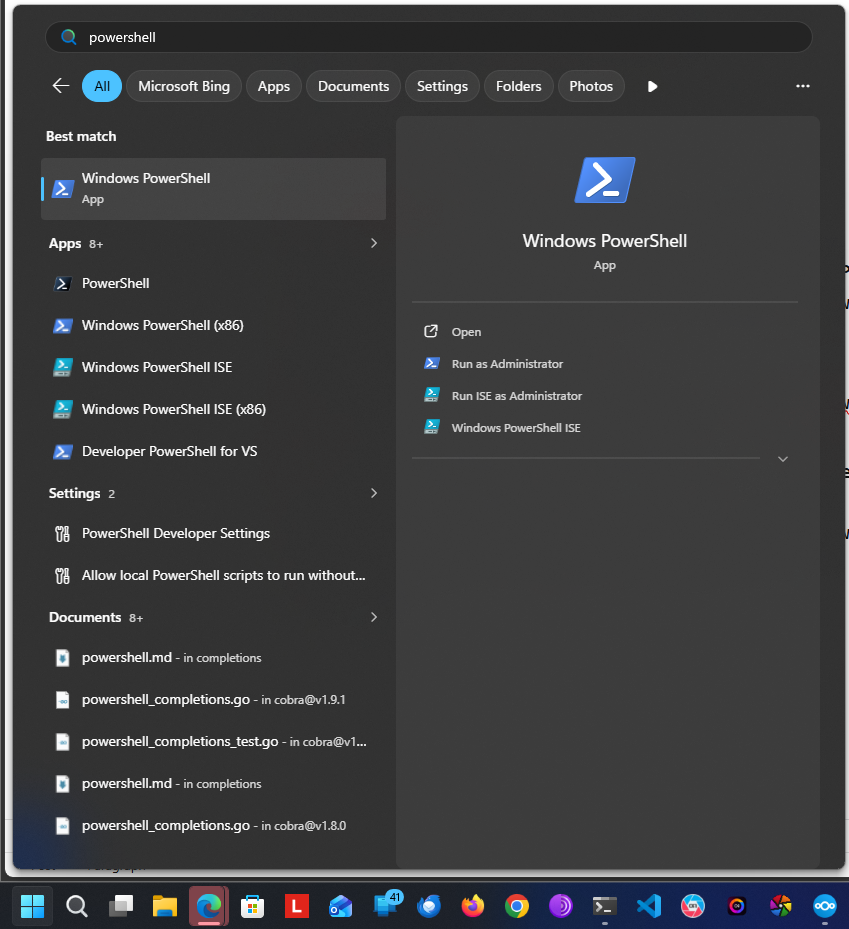
or via the
Rundialog:- Press the keys
Windows+R. - Type
powershell. - Press they
Ctrl+Shift+Enterto run the command as an administrator.
Now you can test if the path exists with the command:
Test-Path "HKLM:\Software\Policies\Microsoft\Windows\WindowsUpdate\AU"If it doesn’t exist, you must first create it with the command:
New-Item -Path "HKLM:\Software\Policies\Microsoft\Windows\WindowsUpdate" -Name AU -ForceThen you can write the key to disable an automatic reboot when a user is logged on:
Set-ItemProperty -Path "HKLM:\Software\Policies\Microsoft\Windows\WindowsUpdate\AU" `
  -Name NoAutoRebootWithLoggedOnUsers -Type DWord -Value 1
And to make sure that this worked, let’s read the key:
Get-ItemProperty -Path "HKLM:\Software\Policies\Microsoft\Windows\WindowsUpdate\AU" -Name NoAutoRebootWithLoggedOnUsersNow automatic reboots should be disabled, but who knows if Windows will honor it.
As with everything Microsoft, even if you think it will work, it won’t hurt if you still say some prayers.
Editing the registry with registry files
I’ve come across this video that explains how to achieve the same in a very simple way with minimal IT knowledge required:
The advantage of doing it this way is that you can easily enable and disable this behavior at will, if you’re into that kind of thing. I won’t judge you.
Conclusions
By default, Windows is set up to install updates and reboot your computer automatically.
For people with intensive workloads who leave their computer working overnight, this can be very damaging, because you can lose work, lose data, and lose money.
The best way I’ve found to disable this on Windows 11 is to set the registry key that disables automatic reboots when a user is logged on.
With this registry key enabled, you should be able leave some work running overnight and lock your computer, and your computer shouldn’t restart without your consent.
Very important: you must leave your user logged on, either unlocked or locked, but never log out.
-
Sony Planespotter Experience workshop at Zurich Airport on 5th September 2026
Foto Video Zumstein have published a Sony Planespotter Photography Experience at Zürich Airport on 5th September
The workshop is scheduled from 7:15 to 16:00 and costs CHF 359. The price includes bus transfer, lunch provided by Runway34, and a ride on the flight simulator.
You can bring your own equipment or test the Sony equipment available on the field.
You can also benefit from some discounts on Sony products. There’s no indication as to how much of a discount, but on previous test days there’s been a 10% discount that can be accumulated on top of the current price and any cashback offers.
Use the event registration page to book your ticket.
-
Sony Planespotter Experience workshop at Zurich Airport on 19th September 2026
Photo Media Luzern announced in their blog that there will be a Sony Planespotter Experience workshop at Zurich Airport on 19th September 2026.
The workshop is scheduled from 7:30 to 16:00 and costs CHF 360. The price includes bus transfer, lunch provided by Runway34, and a ride on the flight simulator.
You can bring your own equipment or test the Sony equipment available on the field.
Use the event registration page to book your ticket.
-
Sony Test Days for wildlife & macro photography on 22nd August 2026 in Switzerland
Wildlife & macro photography at Walter Zoo in Gossau (SG)
Hausamann posted in their news blog that on 22nd August 2026 there will be a Sony Test Day at the Walter Zoo in Gossau(SG) for some of Sony’s gear for wildlife photography:
- Sony Alpha 7 Mark V + 100 mm F 2.8 GM Macro
- Sony A 7 R VI + FE 100-400 mm F 4.5
- RX 10 V
You can choose either the morning or afternoon time slot:
Participation costs CHF 50, and includes admission to the zoo.
If you plan to go, be quick, because the morning event is already booked out. There’s a waitlist, in case you want to try your luck.
Go to their event list for further details and registration.
Macro photography at Papiliorama in Kerzers (FR)
Photo Vision Zumstein announced in their blog that on 22nd August there will be a Test Day & Macro Workshop at the Papiliorama in Kerzers (FR).
The test day is scheduled from 9:00 to 17:00, where you can borrow the equipment free of charge.
There are also two workshops for macro photography throughout the day, also free of charge:
Attendance and equipment rental is free, but you have to pay the entry ticket to the Papiliorama on your own.
-
Up to 50% off on selected OM System gear – 30/07 through 03/08 only!
OM System have a short-lived promotion titled Golden Summer Savings, only valid between 30/07/2026 and 03/08/2026 where they’re offering a discount up to 50% on selected gear:
- Camera kits
- OM-5 Black + 12-45mm F4.0 PRO & 40-150mm F4.0 PRO Kit
- Lens
- 100-400mm F5.0-6.3 IS
- 75mm F1.8
- 9-18mm F4.0-5.6 II
- 40-150mm F4.0-5.6 R
- Body Cap Lens 9mm F8.0 (Black)
- 5 Years Total Extended Warranty
- Binoculars
- 8×21 RC II Gold
- 8-16×40 S Olympus
- Photography accessories
- F-Stop Lotus 4 CORE 28L Camera Backpack Anthracite Black
- Godox LED LC500R Light Stick Mini RGB
- Buteo Beanbag Beanbag Type 1, saddle and belt
Check the links below to access the promotion in your specific country:
- CH-DE Golden Summer Savings – code GOLDENDAYS2026CH
- CH-FR Golden Summer Savings – code GOLDENDAYS2026CH
- DE Golden Summer Savings – code GOLDENDAYS2026EURO
- DK Golden Summer Savings – code GOLDENDAYS2026DK
- ES Golden Summer Savings – code GOLDENDAYS2026EURO
- FR Golden Summer Savings – code GOLDENDAYS2026EURO
- UK Golden Summer Savings – code GOLDENDAYS2026GB
Be mindful that you can only buy exactly one item of each product, and the promotion code can only be used once, which means you have to buy all products in one order.
Don’t be an idiot like me. I placed an order and then I realized that I wanted one additional item, but I couldn’t get the discount anymore 😭
Lesson learned: always scroll all the way down and read the terms & conditions before making an impulsive purchase.
- Camera kits